
How to download CSV from Google Sheets
Tutorial on how to download a CSV from Airtable so you can import it in SmashSend or other tools.
Last updated September 3, 2023
In this tutorial, we're going to download your subscribers from Google Sheets. It's easy and quick to make it happen. Follow these steps and reach out if you can questions: support@smashsend.com
Download subscribers from Google Sheets
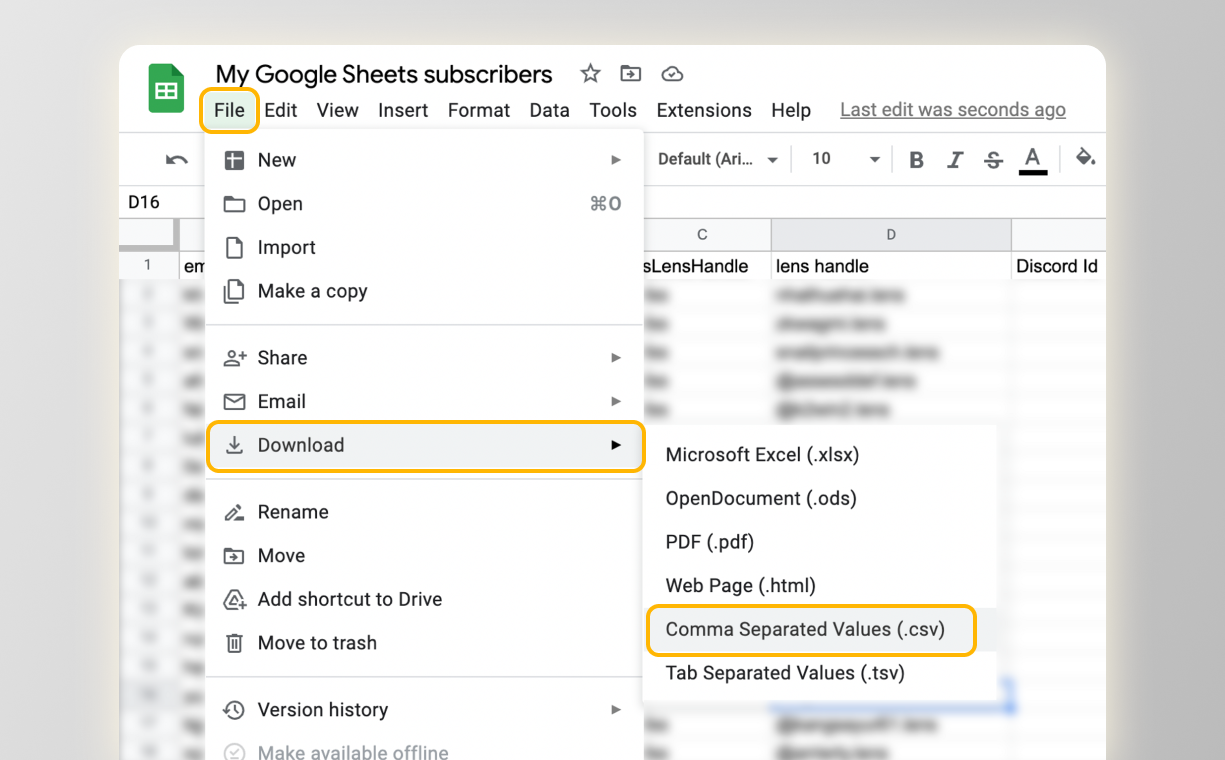
Follow these steps:
- Go to your Google Sheets account.
- Open the sheet you want to export.
- Click on "File" -> "Download" -> "Comma Separated Values (.csv)"
Pro-tip: If you have multiple tabs in the Sheets, you can repeat this process for each tab you want to export.
Next steps
You now use your subscribers to do many things: create a referral program using SmashSend, a waitlist, or a gamified competition.
Here is a guide on how to import your .csv file into SmashSend to email your users in less than 1 minute. Read this guide:
Have doubts or questions? Send us an email to support@smashsend.com or directly reach out on Twitter @ZooTooolsHQ